
Open Reviews to collect client feedback on a file or website. Reviews keep their own history, separate from internal notes and project status.
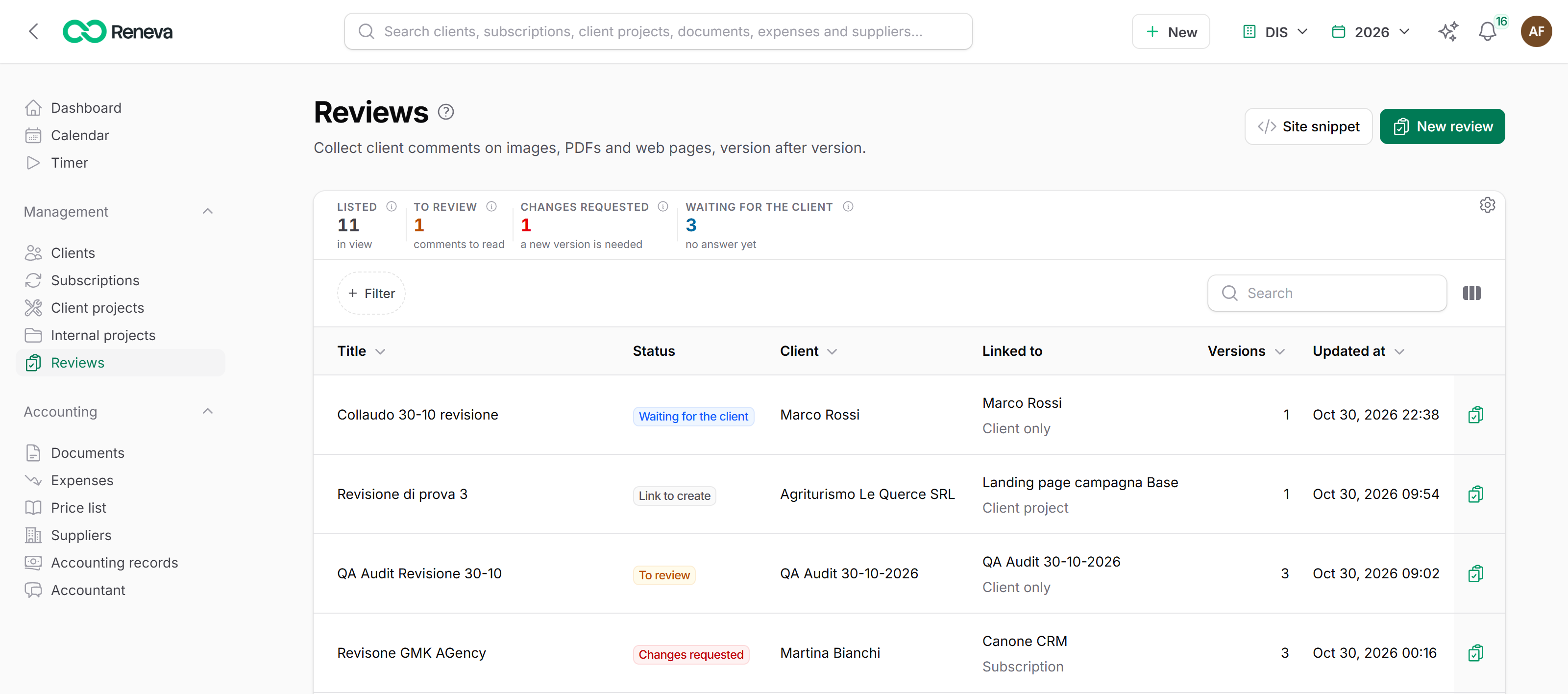
The table shows the title, status, client, linked source and version count. The strip at the top shows the reviews Listed and counts those To review (client comments still open), Changes requested and Waiting for the client: one click filters by Status. You can also filter by Client or Linked to, then open a row to read its versions and comments; the columns icon next to Search chooses and reorders the columns shown. The Reviews breadcrumb at the top returns to the list.
On a phone, the list starts with Title, Status and Client. The other columns remain available from the columns icon; your phone selection is separate from your desktop selection.
New review
Use New review, then select a client and title, such as “October homepage”. In Linked to, pick a Subscription or a Client project belonging to that client, or keep Client only. From a Client's Reviews tab, the client is fixed and the selector is hidden. To choose another client, open New review from the Reviews list.
From a Subscription or Client project, the link is fixed. You also need permission to view or edit it.
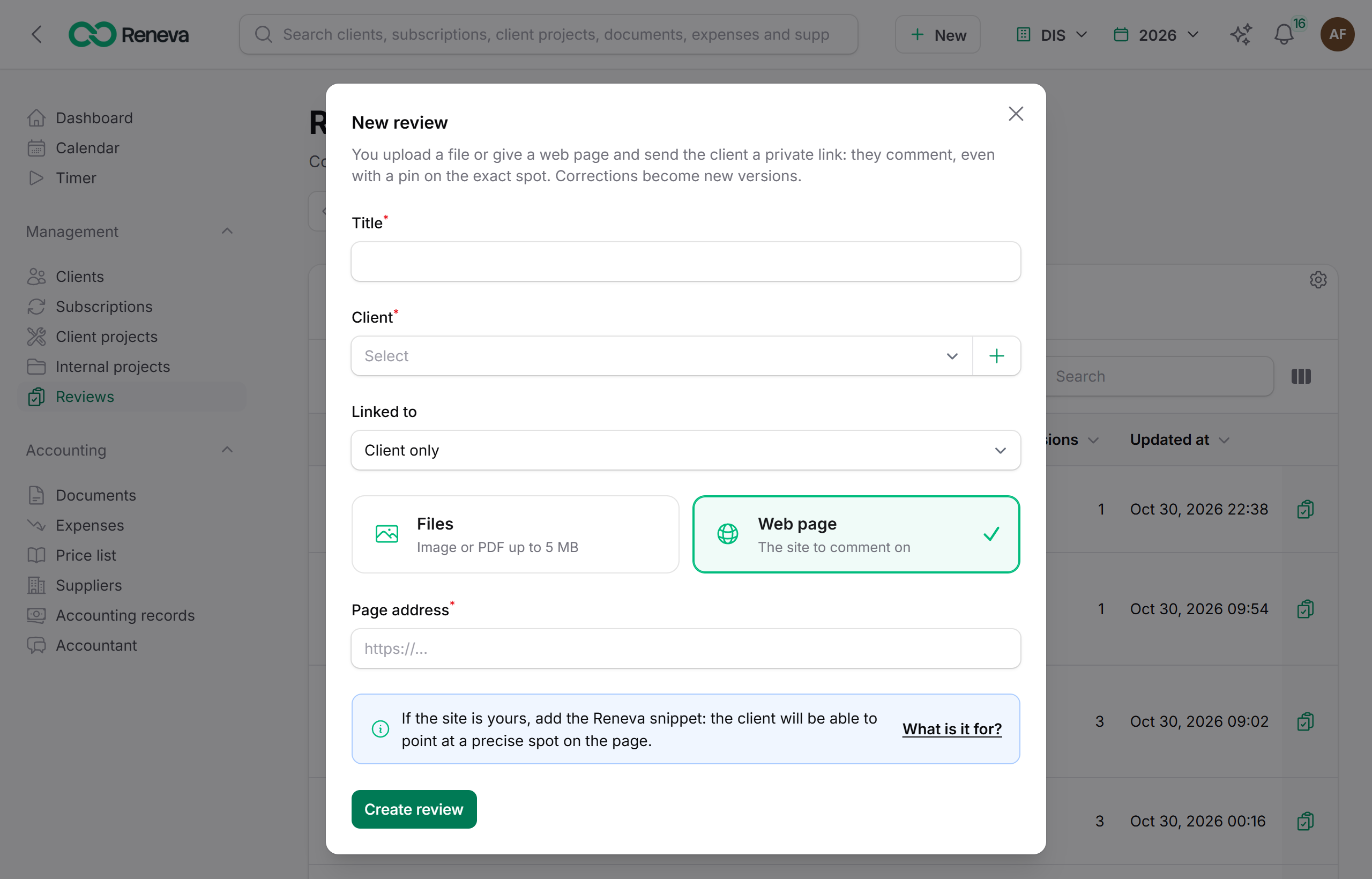
In the same popup choose Files (image or PDF up to 5 MB) or Web page and fill in the one field it needs, which is required: it becomes version 1 and the review opens. With Web page a blue notice mentions the snippet and What is it for? explains it in a popup above the creation popup, without closing it.
Find Reviews under Management, after Internal projects. You can disable the module in Settings › Modules: pages, actions and private links stop working while versions and comments remain stored. Enable it again to restore access.
The “+” next to Client creates a new client; once a client is selected, the pencil appears and completes its tax details and address. Both open in a window, without leaving the page.
New version
New version, to the left of the Version buttons, adds a file or a web page while keeping the previous one: earlier comments stay on the version they refer to. If the previous one was a web page, the popup starts from Web page with the same address; here too a file or a site is required.

The Version buttons are always there, even with a single version, and the green one is the version you are viewing; on the right, the bin deletes the open version, even if it has comments, after the confirmation “Delete version 3?”: its file and comments go too. If it is the only version, the whole review is deleted. Below you find the creation date and the file name or site.
Under the title, Linked to appears only if the review has a Subscription or a Client project. Next to the title you see Link to create while the client has no valid link (before the first one, or after a revocation or expiry), then Waiting for the client while there are no open client comments or decision. The list and Status filter use the same states. To review indicates client comments still open, even after a revocation: the ones you write don't wait for reading.
Comments sit to the right of the preview, as in tickets: you can write first, and with Reply the field shows which comment you are replying to.
A web page shows as it is, on its own website. Drive links open on their own website: Reneva does not download private files or request access to Google.
Copy link and Send by email
Copy link copies the private link; Send by email opens the send-to-client popup, already in preview, with the client's address, Send a CC copy (optional: email addresses separated by commas, each one checked), the subject, the text and the variables. The default subject and text are simple, in the company's Document language, and you can edit them; the link is the button in your Appearance color, as in other emails, and the send shows in the Send log and in the review's History.
At the bottom of the review, History lists versions, link revocations, emails sent and client decisions with date and time, without the comments.
The link lasts 30 days, and the 30 days restart with every Copy link and every Send by email. The link belongs to the review and always opens the latest version: a new version needs no new link. Earlier versions stay available to the client, read-only. If the link has expired or been revoked, the client can ask the sender for a new one.
Anyone holding the link can read, comment, resolve and reopen its threads, and choose Approve or Request changes: the choice stays on the version (Approved or Changes requested, with the date), the last one counts and it also shows in the list and next to the title.
Every client comment, reply, resolution or decision notifies the owners in the bell and by email, with a direct link to the review; a burst of comments sends a single email every ten minutes. The client name identifies the review's owner, not a verified identity of the person commenting.
Revoke link, to the left of Copy link, stops every link of the review; existing comments stay. Deleting a version does not touch the links: they open the latest remaining version; if you delete the only one, they go with it. The deletion shows as a notice, not in the History.
Archiving the client stops access through its links and prevents new links from being created. Restore the client before creating a new link.
Comments
On the private page the client sees the preview first. On images they tap the point to discuss; for a PDF they select the page with the ‹ and › arrows, then tap the preview: the pin stays attached to that page. With the keyboard, Enter places the point and the arrows move it. The form says just “Point 2”, not the coordinates. They can always leave a general comment or reply to an existing thread; Approve and Request changes are at the bottom.
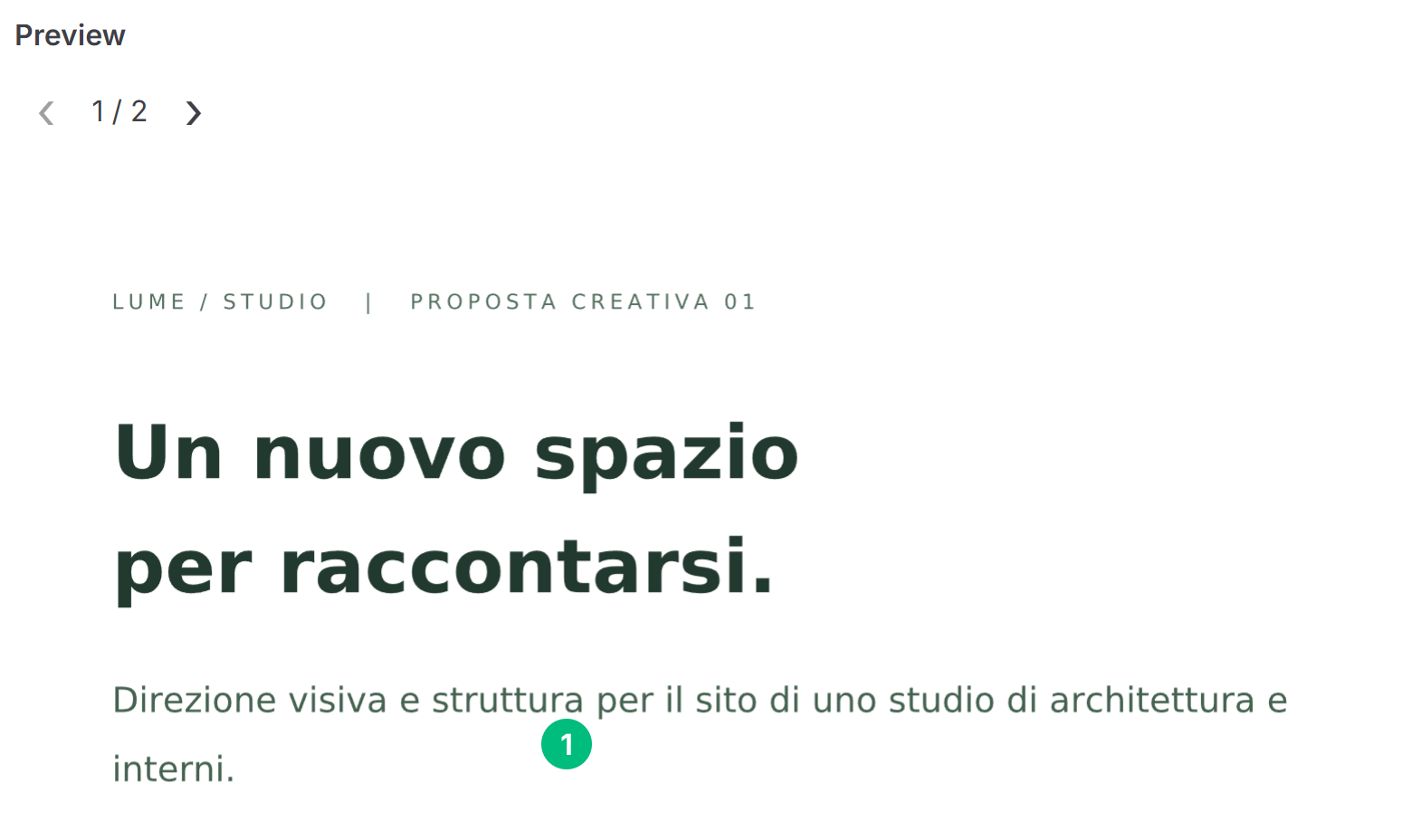
In the review you see the client's pins, each with its number; tap a pin to jump to its comment. Send comment posts your text and Reply links it to the selected comment. Comment details shows its original context.
If the PDF preview is unavailable, open the original or leave a general comment. Resolve and Reopen only change the thread; project status stays unchanged.
Website with a snippet
When you add a web page, Reneva checks whether the snippet is there. If it is missing, Snippet missing opens: if it is your website, paste the snippet before </body>. You find it again under Site snippet, the button with the <> icon to the left of New review in the list. With the snippet the client sees the website on the private page and selects a point with Annotate website. Comments retain the original URL, window dimensions and context.
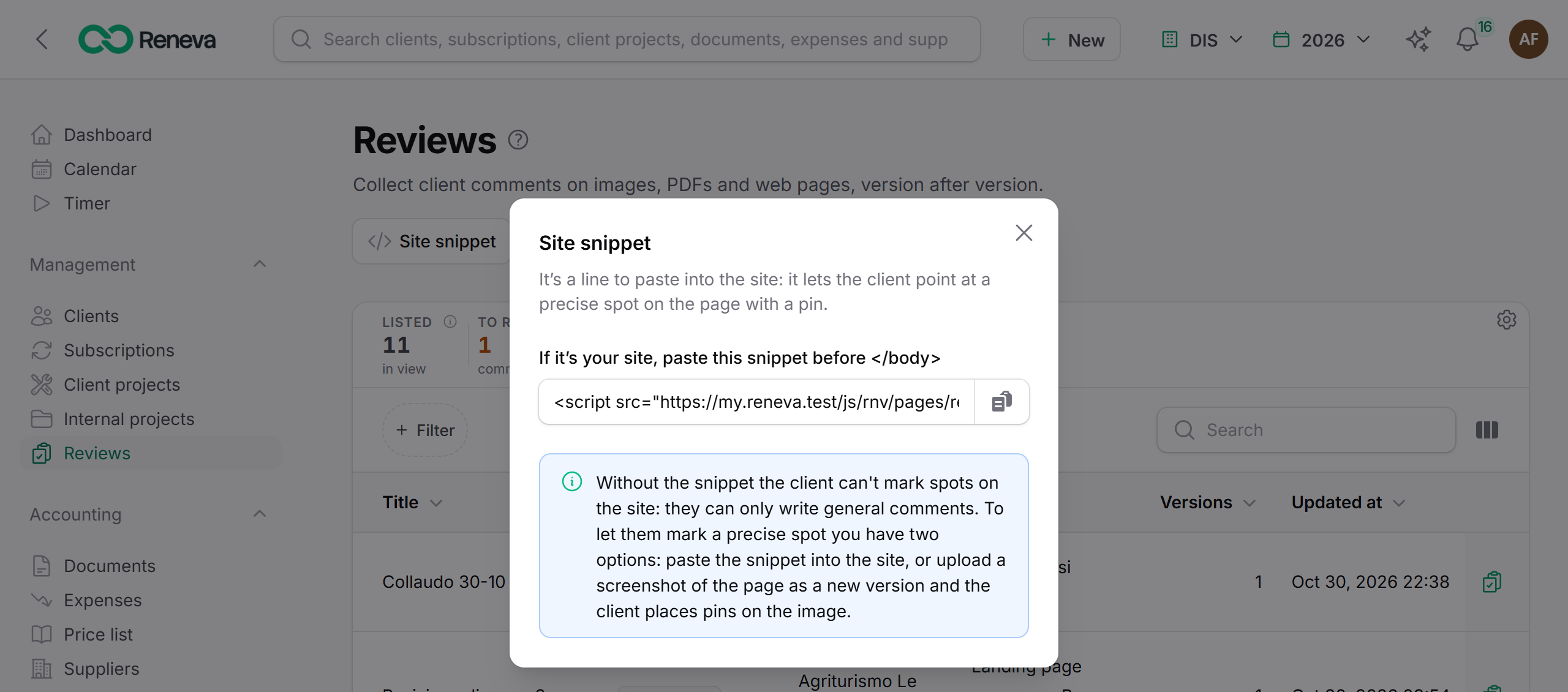
Without the snippet the client can't mark spots on the site: they can only write general comments. To let them mark a precise spot you have two options: paste the snippet into the site, or upload a screenshot of the page as a new version and the client places pins on the image. A different page or window size does not reposition existing pins.