

To move data from Fatture in Cloud to another management tool, start with what you want to bring across: clients, sales invoices, received documents, expenses and other supported historical documents. Include the years you need, even if they are earlier years.
Then follow the process provided by the destination tool. A document, its original file and its payment are linked pieces of information, each with its own place. An initial inventory makes it easier to compare what you had with what has been imported.
This guide, also as a PDF
Subscribe to the newsletter: once you confirm from the link in the email, the PDF guide opens.
This site is protected by reCAPTCHA and the Google Privacy Policy and Google Terms apply.

Choose the data, company and years to transfer
Prepare a list by company, year and category. For each group, note how many records you want to bring across and whether you have the original files. Add the payments you expect to find, with their amounts and dates.
Keep different years separate. This helps you import the right groups and follow up on an incomplete result without starting the whole transfer again.
Reneva’s documented process lets you import clients and historical documents from Fatture in Cloud, including received documents and supported self-invoices, by choosing the document year. Purchase history includes the documents and, where the available information allows it, linked expenses and payments. Here is an example of how those results differ.
The example: six records from 2025 and 2026
Imagine Chiara’s studio, which keeps its day-to-day records in euros. The people and data are fictional. The document amounts have already been established; this example does not recalculate their tax treatment.
Chiara wants to transfer these six records:
| Year | Document in the example | Amount or status to find | Original XML |
|---|---|---|---|
| 2025 | Sales invoice F15 | €1,200, with a payment of €500 | Available |
| 2025 | Received invoice A11 | €244, with a payment of €100 | Available |
| 2026 | Received credit note NC07 | −€20 | Available |
| 2026 | Received document USD08 | US$120 | Available |
| 2026 | Historical Italian self-invoice AF12 | Marked “Paid” in the source | Available |
| 2026 | Historical Italian self-invoice AF13 | To check against the original | To obtain |
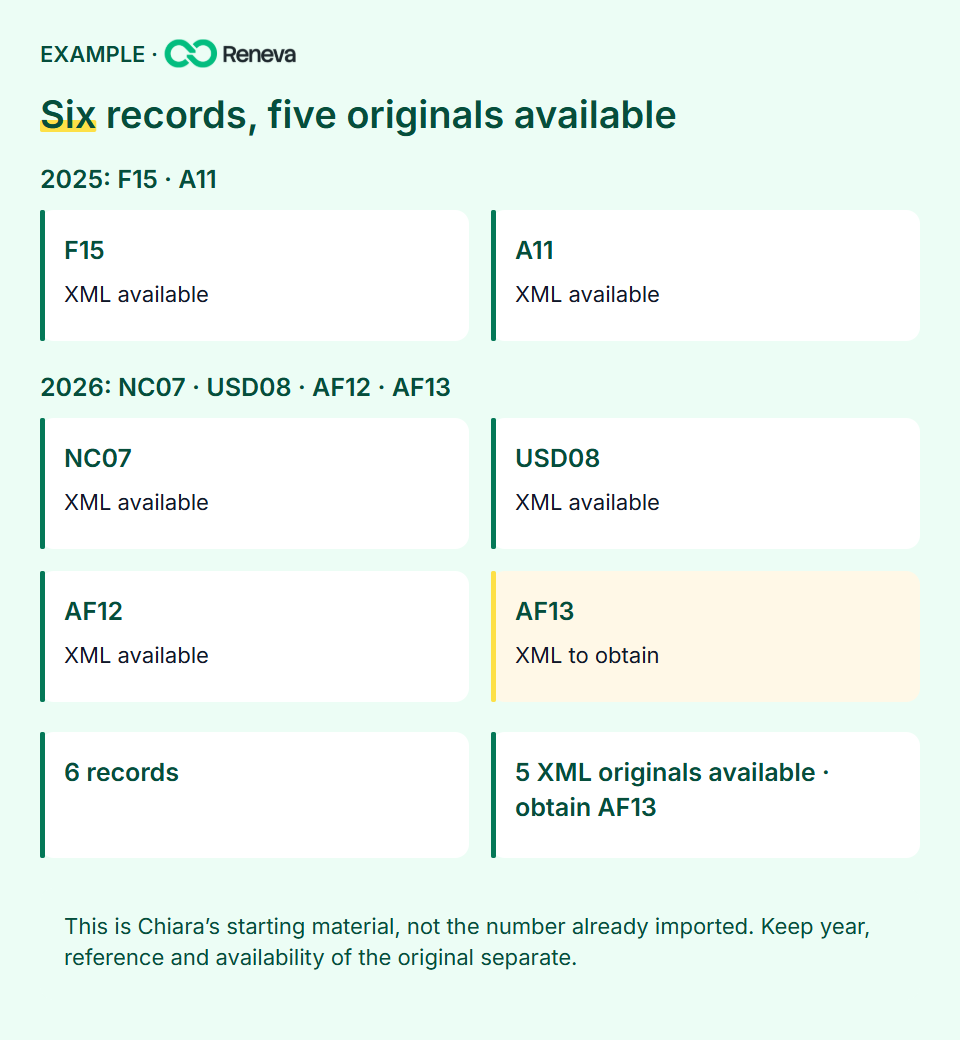
The inventory contains two records from 2025 and four from 2026, with five XML files available and one still to obtain. These numbers describe the starting material. The import summary will show which items have been imported and which still need attention.
Chiara also has four client records in the source. One client’s tax identity is already present in the destination. Before confirming, she checks how that client is matched, rather than expecting four new clients.
Follow the destination tool’s import process
Check whether the transfer uses a connection to Fatture in Cloud or exported files, and which formats are supported. The destination’s instructions need to match the material you are preparing.
For Reneva, the Import/Export guide describes Import from Fatture in Cloud. It is a one-time import of existing data: the two tools do not remain synchronised afterwards.
The process has four steps:
- Enter the New personal token, the code used for the connection, and have it checked.
- Check and select the Company on Fatture in Cloud. The choice is saved and then locked, so check the source before continuing.
- Choose the Data to import and, for documents, the Year.
- Review the summary of the imported data and confirm the batch, continuing with subsequent batches as needed.
Use the company and access rights you are authorised to work with. If historical documents are already present in the destination, also compare the displayed source before starting a new group.
The same page has separate XML and CSV import routes. Use the relevant one: the Fatture in Cloud connection does not mean uploading its entire backup ZIP indiscriminately.
Find the invoices, expenses and payments
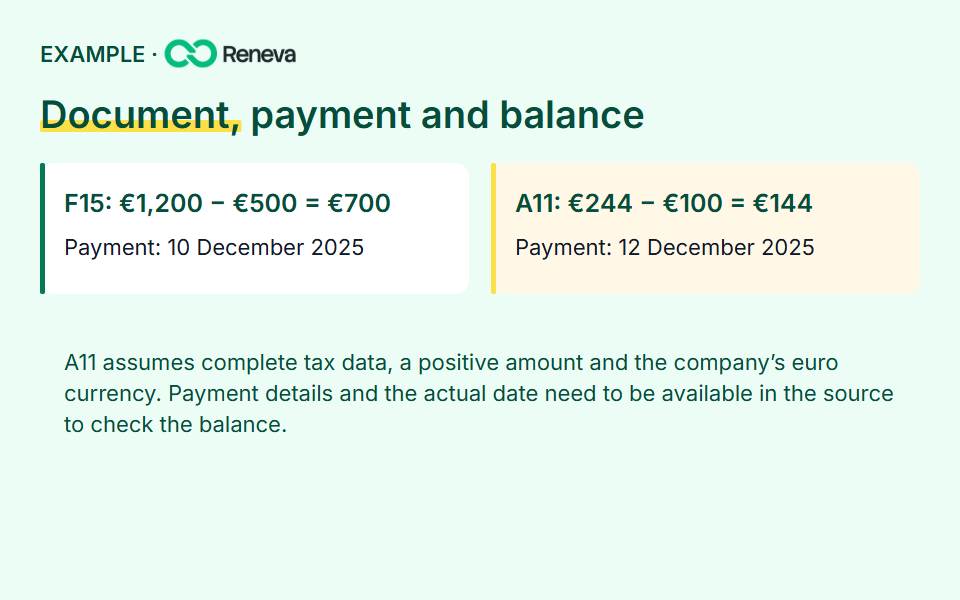
In this example, sales invoice F15 is for €1,200. Suppose the source also supplies the €500 payment and its actual date, 10 December 2025. The outstanding balance to find is:
€1,200 − €500 = €700.
The XML identifies the document; recording the payment requires the information about that payment. Check the amount paid and its date, as well as the invoice file.
For received invoice A11, assume the tax information is complete, the amount is positive and the currency matches the company’s currency. In Reneva’s process, these conditions allow the linked expense to be created. With a €100 payment dated 12 December 2025, also fully recorded in the source, the expected balance is:
€244 − €100 = €144.
The Recording an expense guide explains how received documents are imported and distinguishes the document, expense and payment. For A11, look for all three: the available original, an expense of €244 and a payment of €100 with its date. If the payment information is missing, that remains a point to resolve before treating the balance as correct.
Keep the other historical documents in context
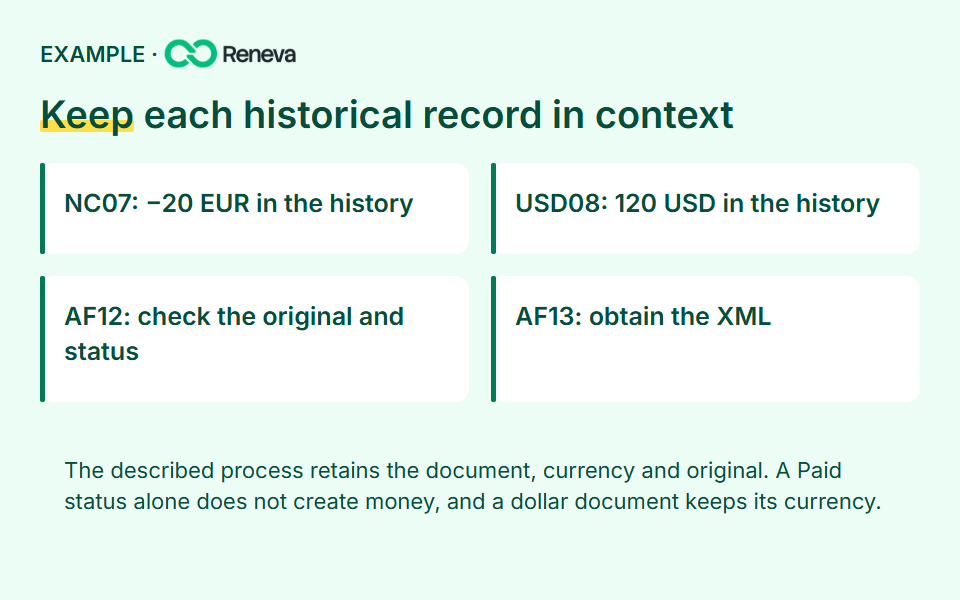
Credit note NC07 and document USD08 have different results from A11. In the process described, they remain in the history with their document, currency and original file. The credit note does not automatically become a new negative expense, and the US$120 is not turned into a euro cost using an invented exchange rate.
For supported historical Italian self-invoices, or autofatture, check that the company, document type and details agree with the original. The New button guide also covers these imports: they retain their number, date and file as historical records you can consult, without generating new costs or payments.
For AF12, the source’s “Paid” status is therefore not enough to create a money movement. For AF13, the outstanding task is to obtain the XML and check the record against the original. A PDF or a list of totals cannot reconstruct the document’s tax information.
These documents retain their role as historical records. Importing them is not a new submission to Italy’s Sistema di Interscambio, or SdI.
Finish with a comparison by category
Return to the inventory and check each year separately. For Chiara’s example, this is what remains to be checked:
| Reference | Expected result under the example’s conditions |
|---|---|
| F15 | Document and XML; €500 payment dated 10 December 2025; €700 outstanding |
| A11 | Document and XML; €244 expense; €100 payment dated 12 December 2025; €144 outstanding |
| NC07 | Received credit note in the history, with its original and amount of −€20 |
| USD08 | Historical document with its original and USD currency |
| AF12 | Consistent number, date and original; no new payment based solely on “Paid” status |
| AF13 | Original still to obtain; result still to verify |
Read the notices in the import summary too. If the import is incomplete, continue with the same batch as instructed: resuming the same source is designed to avoid recreating documents already imported. A conflicting document instead needs its details compared. Do not replace the original simply to make the count match.
Finally, note what you have found and what you still need to obtain. For Chiara, the check covers six records, five original files already available, one missing original and the two balances under the stated assumptions. Keep euros separate from dollars, and documents separate from money movements.
This comparison lets you return to the precise outstanding task and know which historical records you can already consult in the new tool.


